
Tags
Tags are simple labels you attach to contacts to group and segment them. Think “VIP,” “Webinar-Lead,” or “Past-Customer.” A contact can carry as many tags as you like, and those tags power your smart lists, workflow triggers, and filters. They’re one of the fastest ways to organize your audience.
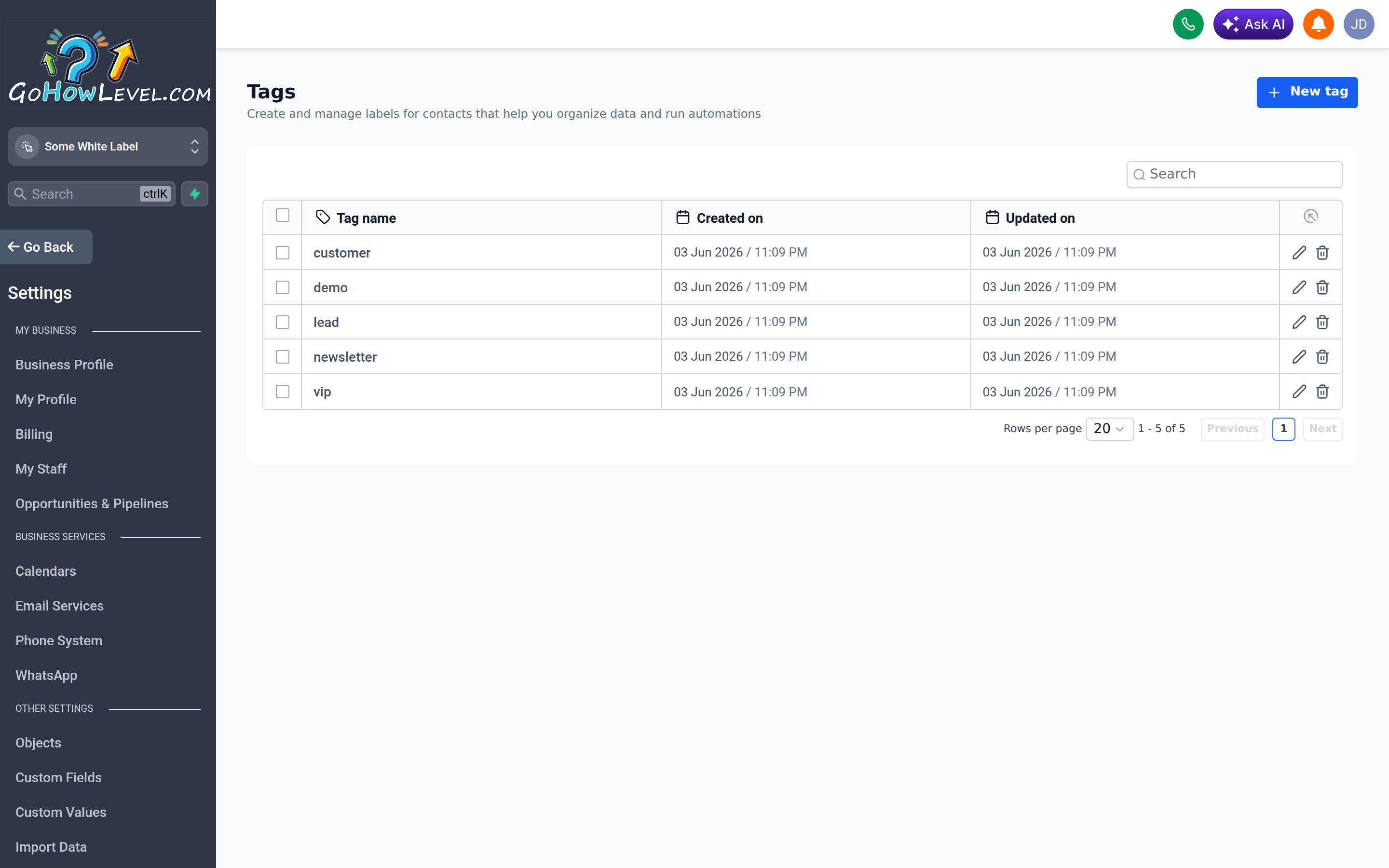
The Tags screen is where you create, rename, delete, and review every tag in your account.
What tags are — and when to use them
Section titled “What tags are — and when to use them”A tag is just a keyword stuck to a contact. It answers a yes/no question: is this contact in this group or not? That makes tags ideal for segmentation and triggering automation.
Tags differ from custom fields:
| Use a tag when… | Use a custom field when… |
|---|---|
| You’re grouping contacts (a yes/no membership) | You’re storing a specific value |
| Example: “Webinar-Lead”, “VIP” | Example: birthday, plan tier, account number |
| You want to trigger or filter automation | You want to personalize or report on data |
A good rule of thumb: if you’d finish the sentence “this contact is a…”, reach for a tag. If you’d finish “this contact’s ___ is…”, reach for a custom field.
Creating and applying tags
Section titled “Creating and applying tags”Tags are usually created the moment you first apply one. You can add tags to a contact in several ways:
- Manually — open a contact and add a tag in the tags section.
- Via forms and surveys — apply a tag automatically when a contact submits.
- Via workflows — use an Add Tag (or Remove Tag) action as part of automation.
- Open a contact record (or a form/workflow action).
- Find the Tags field and start typing.
- Select an existing tag, or type a new name and create it on the spot.
- The tag is applied immediately.
Managing your tag list
Section titled “Managing your tag list”Over time you’ll want to tidy up. Open Settings → Tags to see every tag in your account, where you can:
- Rename a tag — updates it everywhere it’s applied.
- Delete unused tags — removes them from all contacts.
To consolidate duplicates like “VIP” and “vip,” there’s no one-click merge. Instead, pick the tag you want to keep (the canonical one), bulk-apply it to every contact that carries a duplicate, then delete the duplicate tag from the list. A smart list filtered to the duplicate makes it easy to select those contacts and apply the canonical tag in one bulk action.
Use a naming convention
Section titled “Use a naming convention”Avoid tag sprawl
Section titled “Avoid tag sprawl”Kept clean and consistent, tags are one of the most powerful and flexible tools for segmenting your audience and driving the right automation to the right people.