
Custom Values
Custom values are account-level variables — think of them as global constants for your CRM. Instead of typing your business name, booking link, or support email into every template by hand, you define each value once and reference it everywhere with a merge token. Change the value in one place and it updates across every message, funnel, and workflow that uses it.
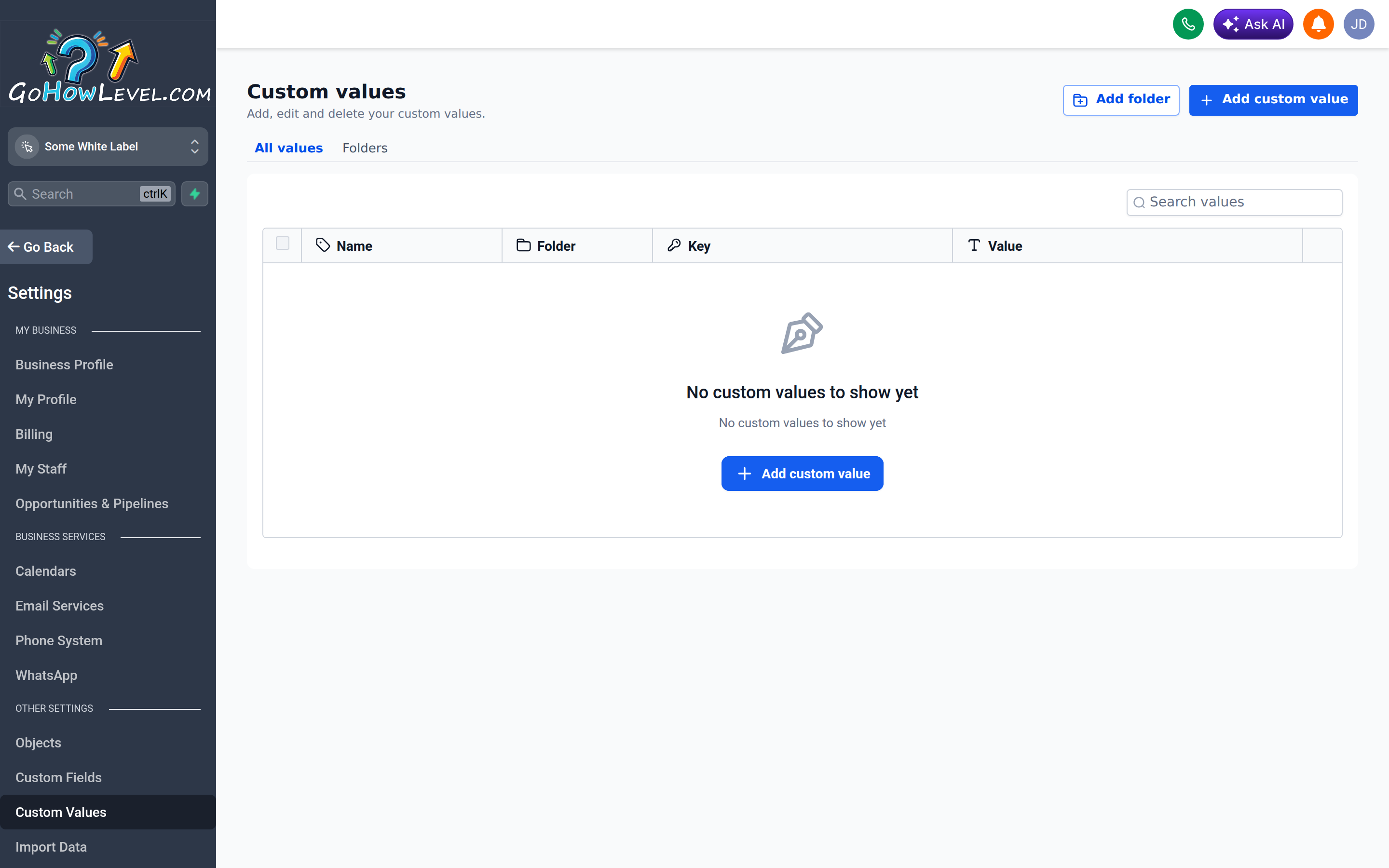
Custom Values are defined once here and reused everywhere through their merge token.
What custom values are
Section titled “What custom values are”A custom value is a named piece of information that’s the same for everyone in your account. Common examples include:
- Your business or brand name
- Your booking/calendar link
- Support email and phone number
- Office hours or business address
- A standard discount code or promotional URL
Each one gets a name and a value, and you reference it using a token like {{custom_values.business_name}}.
Custom values vs. custom fields
Section titled “Custom values vs. custom fields”These two features sound similar but solve opposite problems.
| Custom values | Custom fields | |
|---|---|---|
| Scope | Account-wide — same for everyone | Per-contact — different for each person |
| Example | Your business phone number | The contact’s birthday |
| Token | {{custom_values.name}} | {{contact.field_name}} |
| Change once, applies | Everywhere it’s used | Only to that one contact |
In short: custom values are about your business; custom fields are about each contact.
Creating a custom value
Section titled “Creating a custom value”- Open Settings → Custom Values.
- Click Add Custom Value (or New Custom Value).
- Enter a clear name — for example, “Booking Link.”
- Enter the value — for example, your full calendar URL.
- Save.
The value is now available account-wide as a merge token.
Referencing a custom value
Section titled “Referencing a custom value”Anywhere you can insert merge fields — emails, SMS, funnels, websites, and workflow actions — you can reference a custom value. Use the personalization/merge-field picker and look under the custom values category, or type the token directly:
Book your call here: {{custom_values.booking_link}}When the message sends, the token is replaced with the current value.