
Custom Fields
Custom fields let you capture and store information that the built-in contact properties don’t cover. While every contact already has standard fields like name, email, and phone, custom fields hold the details that matter to your business — a customer’s plan tier, their preferred appointment time, a policy number, a referral source, or anything else worth tracking.
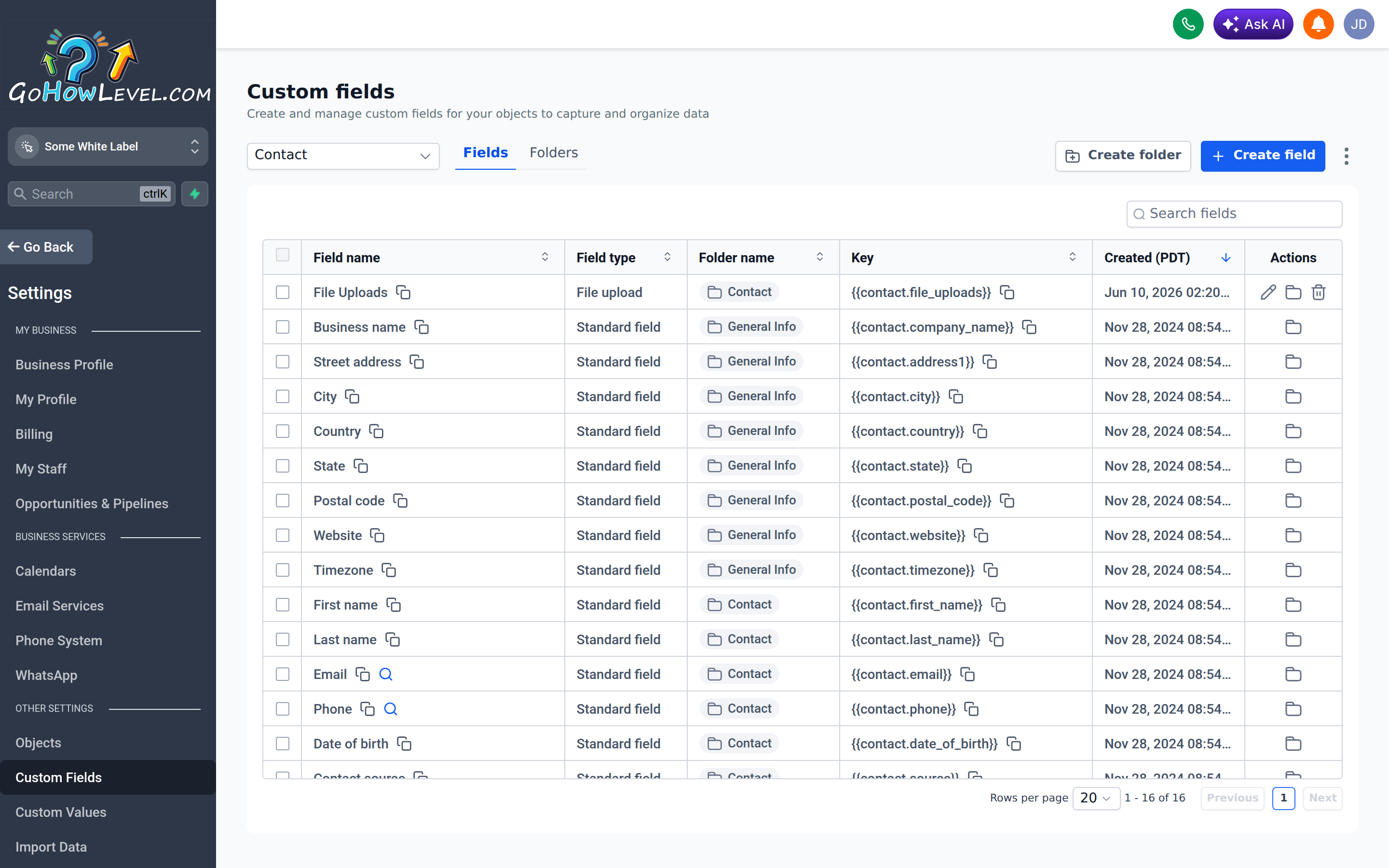
Custom Fields is where you add and organize the data points your business tracks on each contact.
What custom fields are for
Section titled “What custom fields are for”A custom field is a labeled slot of data attached to each contact (and, in many accounts, to opportunities as well). Once you create a field, it becomes available everywhere a contact is involved: on the contact record, inside forms and surveys, in workflows, and as a personalization token in your messages.
Use custom fields whenever you need to store data that is specific to each contact — values that differ from person to person.
Creating a custom field
Section titled “Creating a custom field”- Open Settings → Custom Fields.
- Click Add Field (or New Field).
- Choose the field type that matches the data you’re storing (see the table below).
- Enter a clear name for the field. This becomes the label people see and part of its merge token.
- Set any options the type requires — for example, the list of choices for a dropdown, or a default value.
- Optionally assign the field to a folder to keep things organized.
- Save.
The field is now live and will appear on every contact record.
Choosing the right field type
Section titled “Choosing the right field type”Picking the correct type up front keeps your data clean and makes it usable in filters, workflows, and reports.
| Field type | Best for |
|---|---|
| Single-line text | Short free text (e.g., company name, referral source) |
| Multi-line text | Longer notes or descriptions |
| Number | Numeric values you may want to compare or calculate |
| Phone | Additional phone numbers |
| Monetary | Currency amounts |
| Dropdown (single-select) | One choice from a fixed list |
| Multi-select | Several choices from a list |
| Checkbox | Yes/no or multiple toggles |
| Radio | One choice shown as buttons |
| Date | Dates such as renewal or anniversary |
| File upload | Documents or images collected from contacts |
Organizing with folders
Section titled “Organizing with folders”As your field list grows, group related fields into folders — for example, “Onboarding,” “Billing,” or “Preferences.” Folders keep the contact record tidy and make fields easier to find when building forms or workflows. You can create folders from the same Custom Fields settings screen and drag fields into them.
Where your fields show up
Section titled “Where your fields show up”Once created, a custom field is available across your account:
- Contact records — visible and editable on each contact.
- Forms and surveys — add the field to collect the data directly from contacts.
- Workflows — read the value to branch logic, or update it automatically.
- Messages — reference it as a merge field to personalize emails and SMS.
Plan before you build
Section titled “Plan before you build”A little planning here pays off every time you build a form, segment a list, or send a personalized message.