Templates
Reusable content lives in two places under Marketing: email templates on the Emails tab, and reusable text Snippets on the Snippets tab. Together they mean your team never has to rewrite the same content twice — drop a saved email or snippet into a workflow, a campaign, or a one-off send in seconds, and update it in one place when your messaging changes.
There is no single “Templates” tab. The Marketing area’s tabs are Social Planner, Emails, Snippets, Countdown Timers, Trigger Links, Affiliate Manager, Brand Boards, and Ad Manager. Email templates are built and stored under Emails; short reusable text and SMS content lives under Snippets.
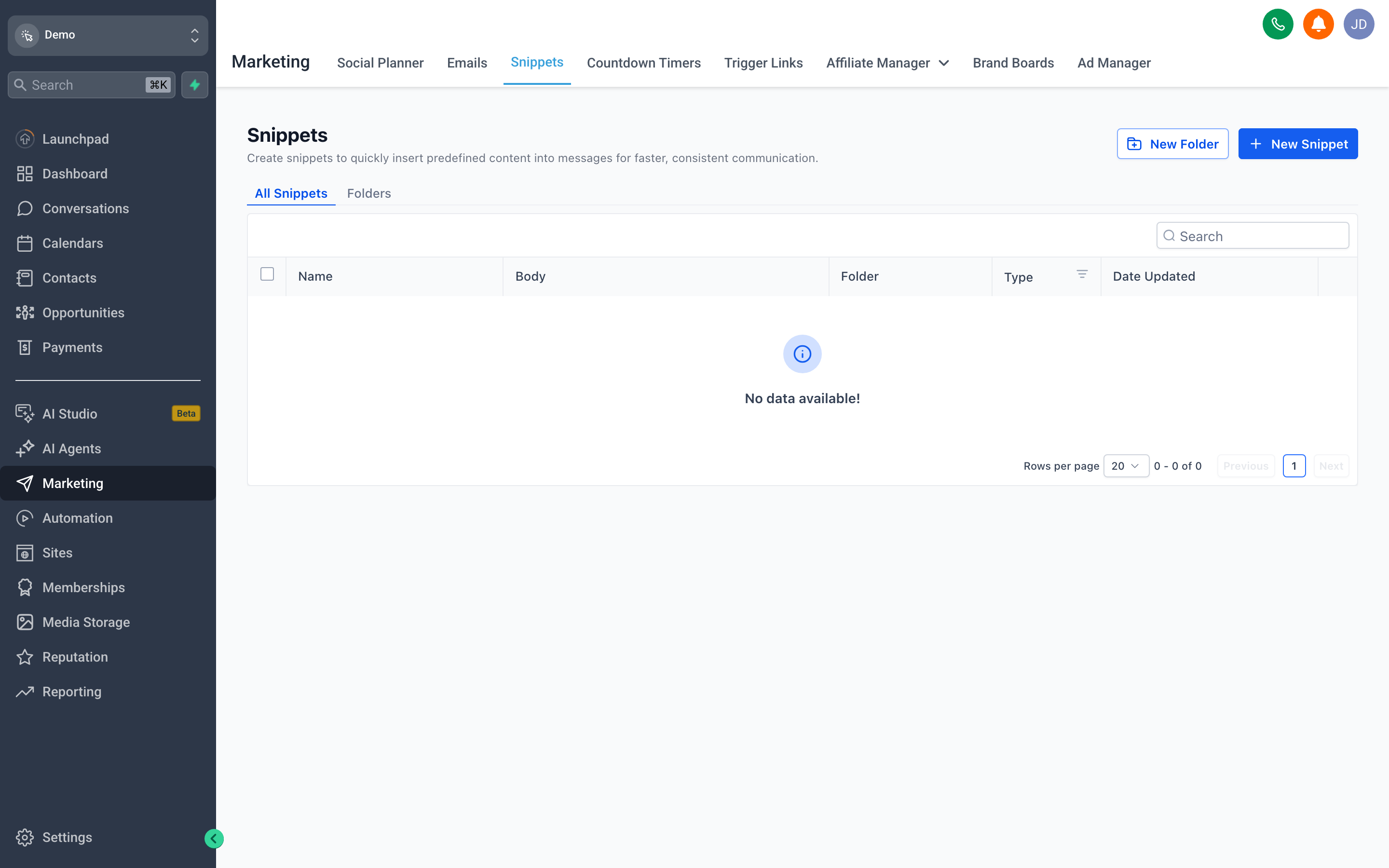
Reusable text lives under Snippets; email templates live under the Emails tab in Marketing.
Why reusable content saves time
Section titled “Why reusable content saves time”If you find yourself retyping the same welcome email, appointment reminder, or follow-up text, that work belongs in an email template or a snippet. Both give you:
- Consistency — every message uses approved wording, branding, and links.
- Speed — pick a template or snippet instead of starting from a blank editor.
- One-place updates — edit it once and reuse it everywhere going forward.
- Personalization at scale — merge fields fill in each contact’s details automatically.
Creating an email template
Section titled “Creating an email template”Email templates are built in a visual editor and saved for reuse, all under the Emails tab.
- Open Marketing → Emails.
- Click to add a new template and give it a clear, descriptive name (for example, “New Lead — Welcome”).
- Pick a starting point: a drag-and-drop builder, a blank canvas, or an HTML/code editor if you’re pasting in custom markup.
- Build your layout — add text blocks, images, buttons, dividers, and columns by dragging them into place.
- Add your subject line and body copy, then style fonts, colors, and spacing to match your brand.
- Save the template. It now appears in your library, ready to reuse.
Creating a snippet (reusable text / SMS content)
Section titled “Creating a snippet (reusable text / SMS content)”Snippets are short, reusable pieces of text rather than designed layouts. Open Marketing → Snippets — “Create snippets to quickly insert predefined content into messages for faster, consistent communication.” The view lists your snippets under All Snippets (with a Folders view) and shows columns for Name, Body, Folder, Type, and Date Updated.
- Open Marketing → Snippets.
- Click New Snippet (or New Folder to organize first) and name it.
- Type your message in the body. Keep it concise, and remember that long messages may be split into multiple segments.
- Save it for reuse in workflows, conversations, and broadcasts.
Using merge fields for personalization
Section titled “Using merge fields for personalization”Merge fields pull live data from each contact’s record so one template greets everyone by name.
- Use the editor’s personalization picker — the Custom Values / merge-field menu — to insert fields like first name, appointment time, or company.
- Always set a fallback value where one is available — if a contact has no first name on file, a fallback like “there” prevents an awkward “Hi ,”.
- The same merge fields work in both email and SMS templates.
Organizing your library
Section titled “Organizing your library”As your collection grows, structure keeps it usable.
- Use folders or categories to group templates by purpose — onboarding, sales, reminders, re-engagement.
- Adopt a naming convention so anyone can find the right template at a glance (for example, prefix by audience or stage).
- Archive or delete templates you no longer use to reduce clutter.
Reusing a template across workflows and broadcasts
Section titled “Reusing a template across workflows and broadcasts”A saved template is available anywhere you compose a message.
- In a workflow — add an email or SMS action, then select your saved template instead of writing fresh content. The merge fields personalize each contact as the automation runs.
- In a broadcast or campaign — choose the template as your starting content for a one-time send to a list or segment.
- In a one-off send — load a template from the contact’s conversation view to reply quickly with approved wording.