
Trigger Links
Trigger Links are special trackable links you place inside your emails and text messages. When a contact clicks one, your CRM records the click and can automatically react — starting a workflow, applying a tag, or moving the contact forward in a follow-up. They turn a simple click into a signal of intent you can act on instantly.
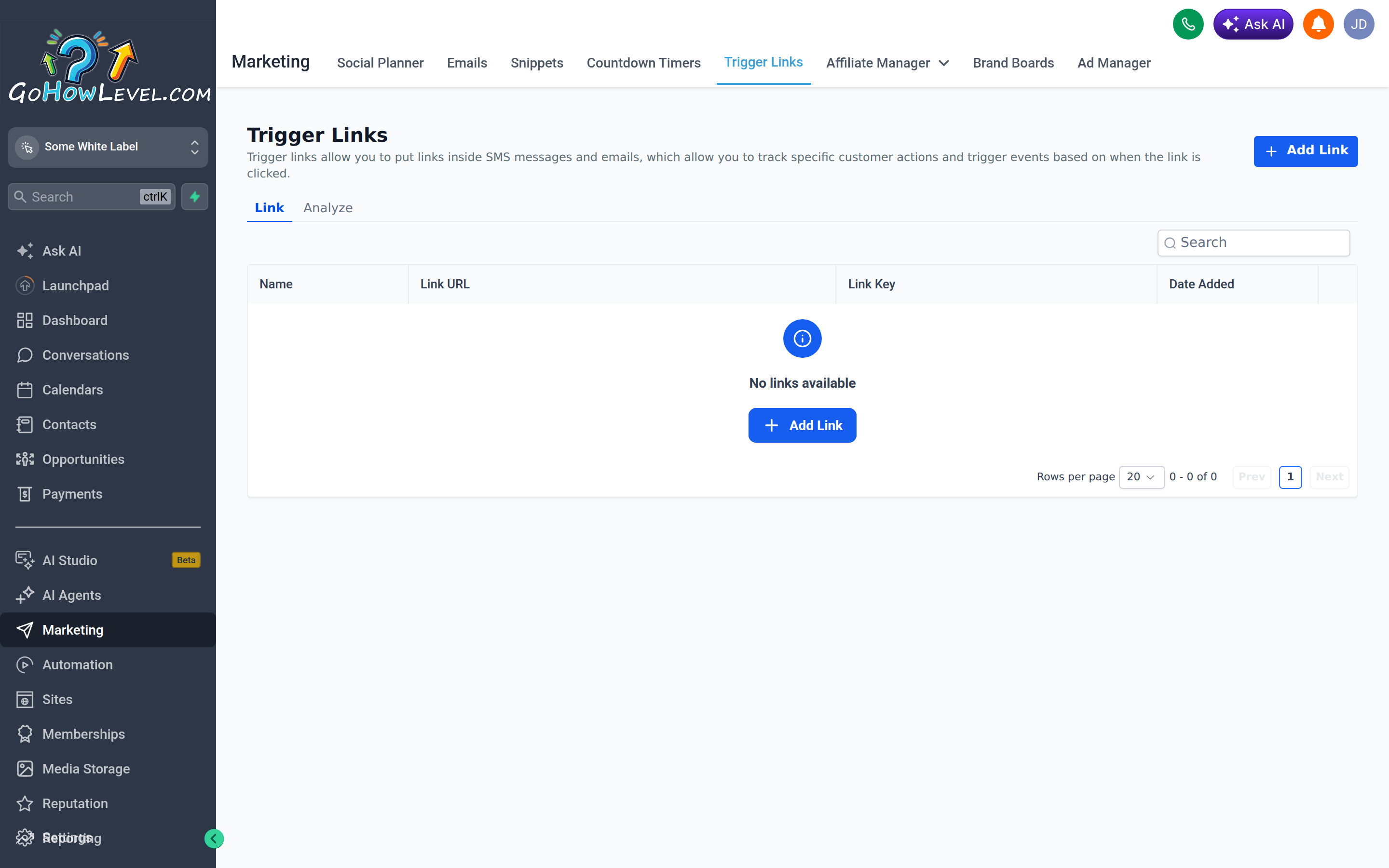
Trigger Links are trackable links that can fire workflows and apply tags when a contact clicks them.
What they are and why they’re powerful
Section titled “What they are and why they’re powerful”A normal link just sends someone to a web page. A trigger link does that too, but it also tells your CRM exactly who clicked and when. That click becomes data you can automate against.
This matters because a click is one of the strongest buying signals you get. Someone who clicks your “View Pricing” link is more interested than someone who only opened the email. With trigger links you can:
- Tag contacts based on what they clicked, building rich interest profiles.
- Start a tailored follow-up the moment someone shows intent.
- Score or segment your audience by behavior rather than guesswork.
- Track which links and offers actually drive engagement.
Creating a trigger link
Section titled “Creating a trigger link”- Open the Trigger Links area in the marketing section of your account.
- Add a new trigger link and give it a clear name (for example, “Pricing Page Click”). The name is how you’ll recognize it in reports and automations, so be specific.
- Enter the destination URL — the page the contact lands on after clicking.
- Save the link. It’s now available to insert into messages and to reference in workflows.
Inserting a trigger link into a message
Section titled “Inserting a trigger link into a message”Once created, you add the trigger link to any email or SMS using the link or merge picker in the editor.
- In your email or SMS editor, place your cursor where the link should go (or select the text or button you want to link).
- Open the trigger link / custom value picker.
- Choose your saved trigger link from the list. The editor inserts the trackable URL in place of the raw destination.
- Save the message.
From the contact’s point of view the link looks and behaves normally — but every click is now tracked and ready to trigger automation.
Building automation off the click
Section titled “Building automation off the click”The real power comes from reacting to the click in a workflow.
- Create or open a workflow.
- Add a workflow trigger and choose the Trigger Link Clicked trigger.
- Select the specific trigger link you want to listen for.
- Add the actions that should run when a contact clicks — for example, apply a tag, send a follow-up email, notify your team, or update a field.
- Publish the workflow so it goes live.
Now, any contact who clicks that link anywhere it appears enters the workflow automatically.
Use-case example
Section titled “Use-case example”Suppose you send a nurture email with a “See Our Pricing” button linked to a trigger link:
- A contact clicks See Our Pricing.
- The Trigger Link Clicked trigger fires for that contact.
- The workflow applies a
Pricing-Interestedtag. - It waits one hour, then sends a short follow-up offering to answer questions or book a call.
- Your sales team gets an internal notification that a warm lead just looked at pricing.
The contact experienced one click. Behind the scenes, you tagged them, started a timely follow-up, and alerted your team — all automatically.